

In this short guide, I'll show you how to create your own motif from a simple text input (Prompt) in a few minutes and use Inkscape – the free open source solution – to use it as a clean, scalable vector graphic (SVG/PDF). We generate the image via AI, transfer it to Inkscape, vectorize the appropriate contours and optimize edges and size - ready for plotters, foil stencils or screen printing.
The right prompt
A good prompt sets the direction from the beginning: First name the purpose of the motif (e.g. "Vector-style T-shirt design") to help the AI understand the format and use. Then set the color scheme explicitly to black and white - "only black on a white background, without grayscale or shading" - because this gives you clear contours that can be easily vectorized later.
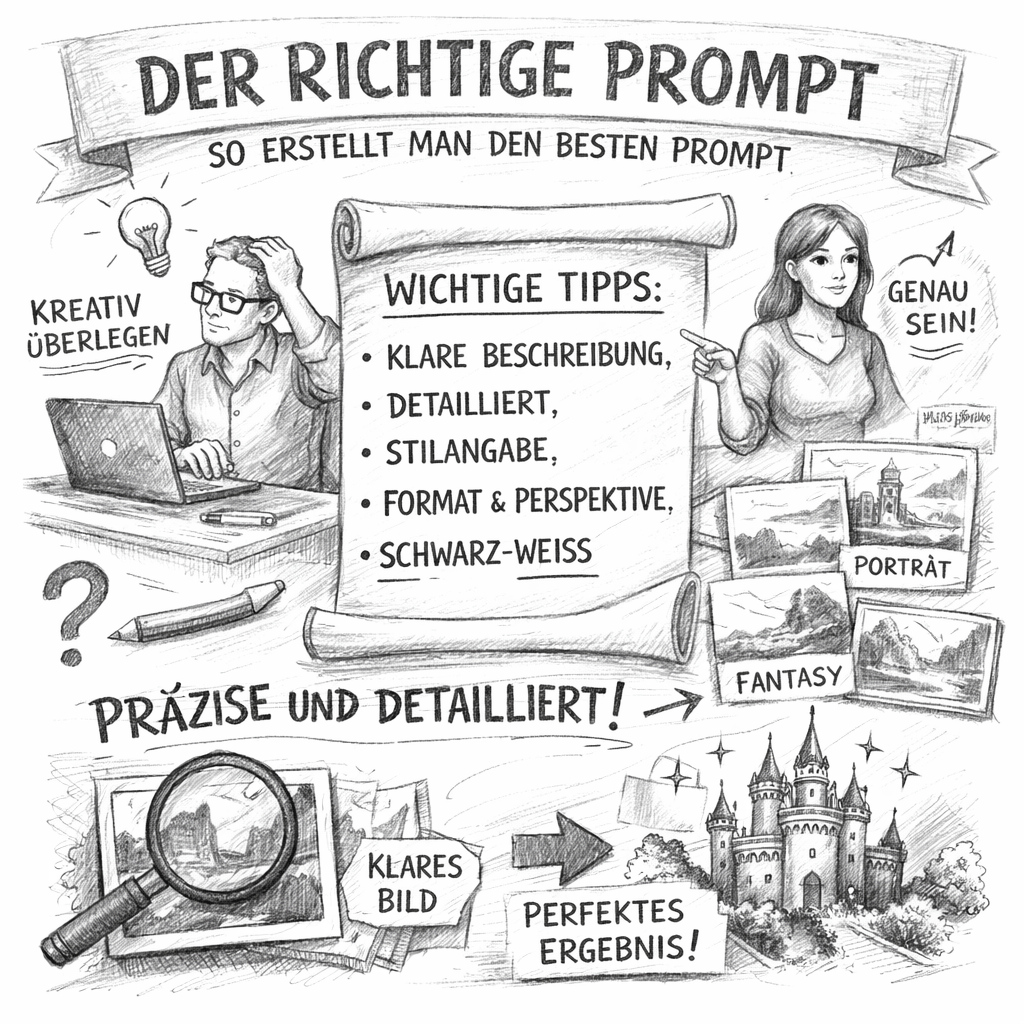
Then describe the motif as precisely as possible: direction of view, posture, central elements, supplementary shapes or text, style words such as "minimalistic", "clear, thick lines", "without gradients", as well as notes on composition ("central motif", "a lot of white space", "no textures"). The more specific you are, the less post-processing you will need later in Inkscape.
Sample prompt
Here is an example prompt with which the following image was generated with "GPT image 1":
A t-shirt design in vector style, only black color on white background. A stylized sea turtle swims to the right. Their tank is at the same time a rising sun from which the sun's rays come. Under the turtle, three simple, curved lines are represented as waves. linked to the motif is written in curved handwriting 'WANDERLUST'. The design is minimalist, with clear, thick lines and no shading.
Creating the vector graphics with Inkscape

Once the AI image is available, we convert it into clean, scalable vector graphics in Inkscape. Inkscape is ideal for this because all shapes can be processed without loss and can later be output as large or small as desired.
- Start Inkscape.
- Open new document: File > New.
- Choose A4 as the work surface (other formats are also possible; the final vector graphics can be scaled as desired).
- Optional: In File > Document Settings, set the units to millimeters or pixels and activate an auxiliary grid for more precise alignment later.
Inkscape – Download and Info
Inkscape is a free, open source vector graphics program for Windows, macOS, and Linux. It supports SVG as a native format and is perfect for creating, editing, and exporting scalable subjects for plotters, slide templates, and screen printing.
- Website: inkscape.org
- Download: inkscape.org/release
Briefly worth knowing:
- Powerful like many pro tools: node/path editing, boolean shapes, text on path, layers, align/arrange.
- Open formats: SVG native, export etc. as PDF, PNG; good compatibility with Illustrator/Corel.
- Expandable: Numerous extensions and filters, active community, many tutorials and manuals.
- Ideal for black and white designs: clear contours, simple color strokes and precise scaling without loss of quality.
Import and prepare image
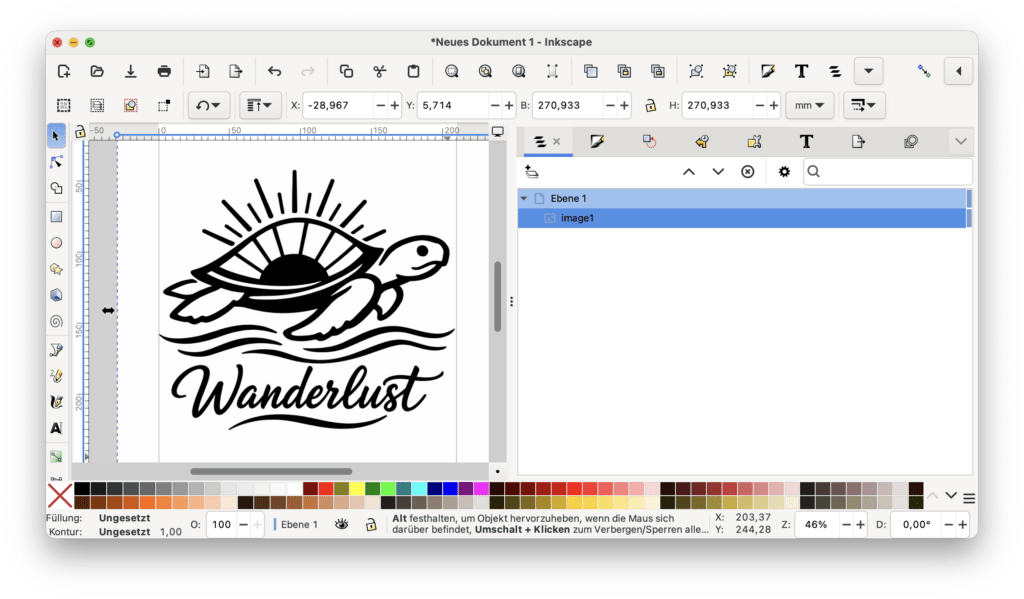
Drag and drop your AI image into the open Inkscape window. It doesn't matter if the image is larger or smaller than the A4 page - we only work with the graphic itself, not with the page layout. Place the picture roughly in the middle; we will set the exact size later.
Trace bitmap (vectorize)
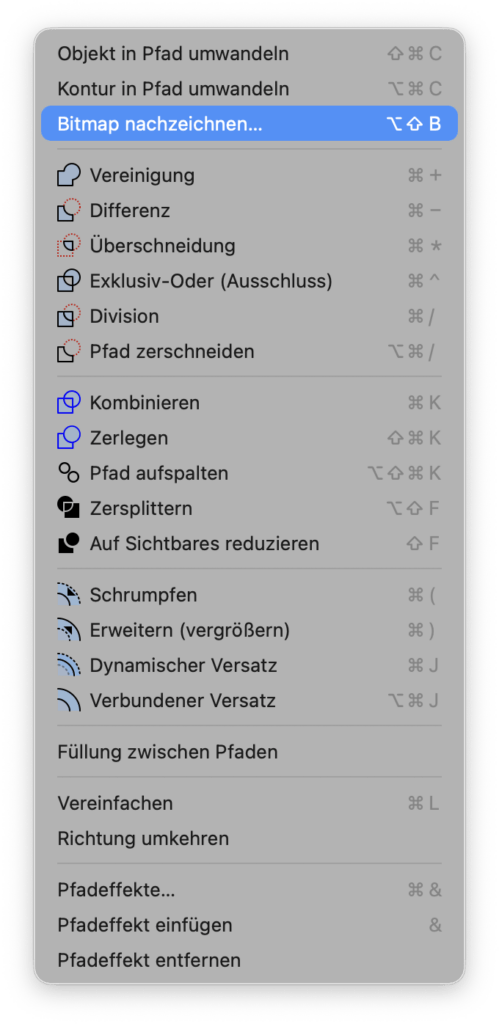
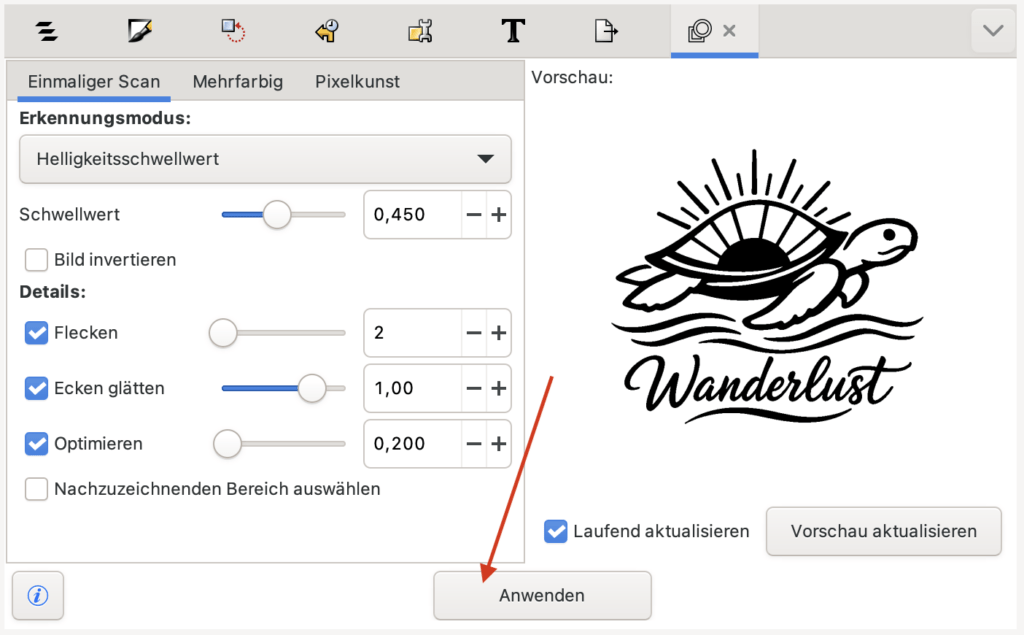
Highlight the imported image and open Path > Trace Bitmap. In the Single Scan tab, select Brightness Threshold Detection mode. Move the slider so that all the desired black areas are closed in the preview, but light disturbances disappear. For clean edges, select "smooth corners" and "optimize"; "stains" helps to remove small holes. Click Apply – Inkscape now puts a new vector shape directly over the original.
Hide/remove original image
Move the new vector shape briefly to the side: You can still see the pixel image underneath. Delete or lock this original (e.g. In the layer/object list) so that you can only work with the paths from now on. Push the vector shape back to its position.
Check and simplify paths
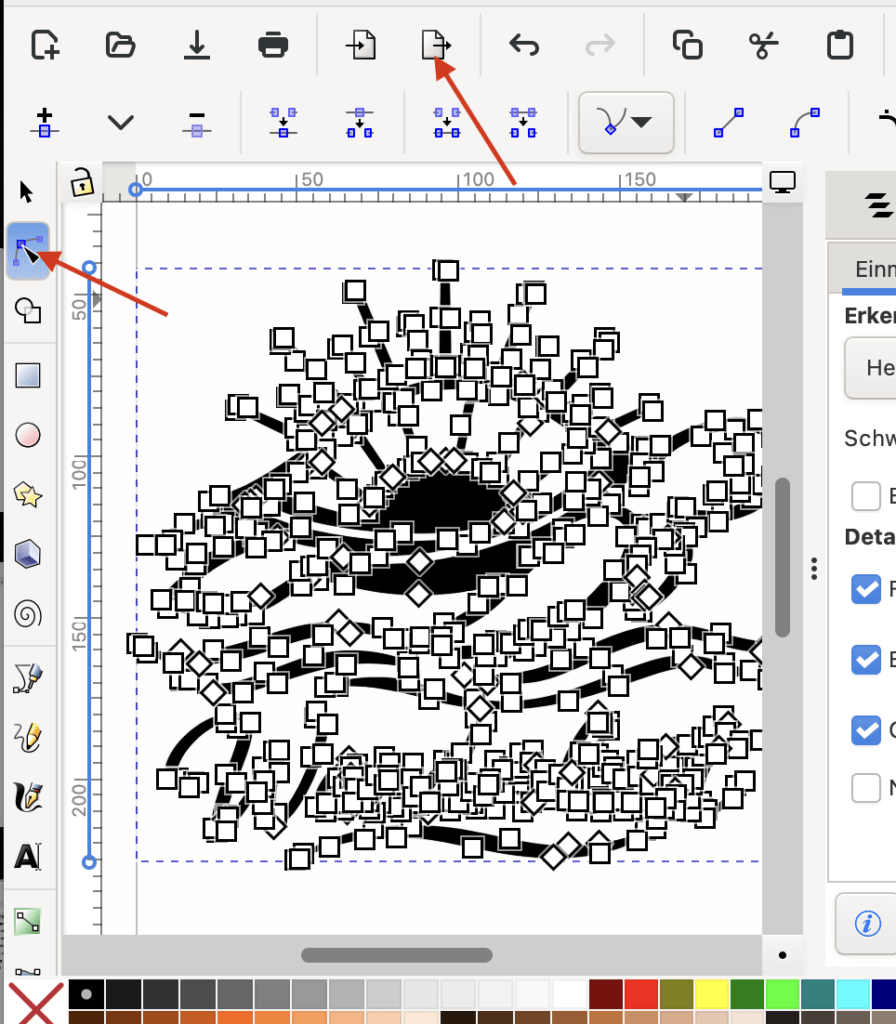
Switch to the knot tool to inspect the paths. After tracing, the contours often contain a lot of knots. If necessary, select the paths and use Path > Simplify (Ctrl+L) carefully to reduce unnecessary nodes without visibly distorting shapes. Check particularly narrow inner rays and tips. You can close open gaps with the knot tool or compensate with small shape corrections.
Black filling, no contour
For the plot or the silt print you need clear surfaces. Therefore, set the filling to black and deactivate the contour. This way you can see exactly which areas are later open (at the sieve) or cut (at the plot).
Export as plain SVG
Finally, export via File > Save as or File > Save As, or the Export button in the menu bar and select "Plain SVG (*.svg)".
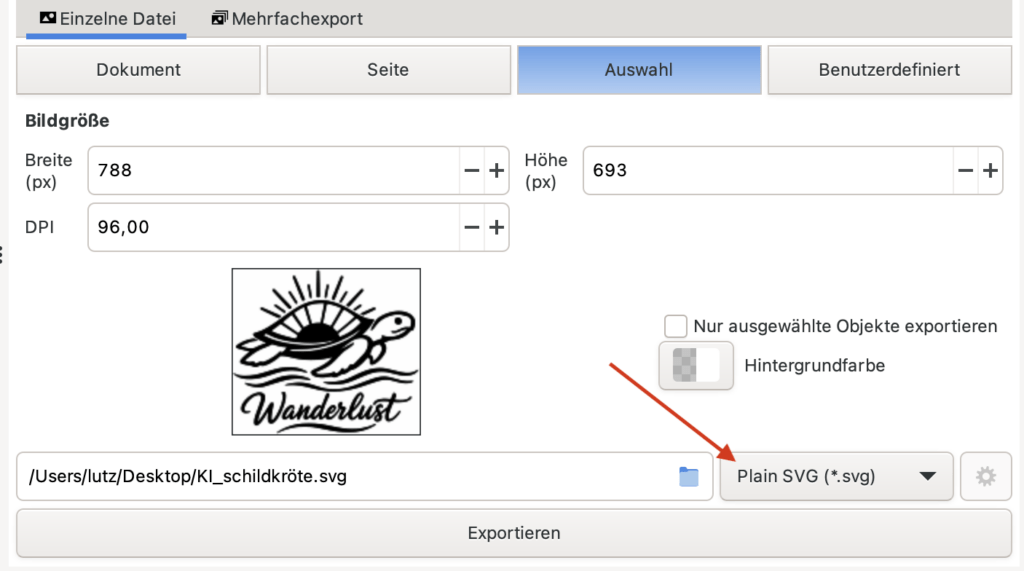
This format is compact, compatible and ideal for plotter software and further silf printing preparation. Optionally, you can also output a PDF if another workflow requires it.
Download: Vectorized Turtle
Get the vectorized turtle here as Plain-SVG for plotters and sile prints. The file is black and white, neatly traced and can be scaled as desired.

- Format: SVG (Plain)
- Nutzung: Testdrucke, Plotten, Sieb‑Schablone
- Note: For foil stencils, if necessary, mirror before plotting
Download KI_schildkroete.svg
More ideas for prompts
Vary theme, style and technique: "T-shirt design, black on white only, minimalist", combine motifs (e.g. B. "Fuchs + Bergkette"), give direction/arrangement and name text and style ("handwriting"). Notes such as "clear, thick lines, no shading, a lot of white space" facilitate later vectorization. For even more inspiration, here are additional sample prompts:
Motif as a present for a vector graphic black on white background of a monk seal with caption "don't throw rocks at seals' in tattoo style.For dark t-shirts:
Motif as a prelay for a vector graphic for printing on dark T-shirts white on a black background of a monk's seal with caption "don't throw rocks at seals' in tattoo style.Motif for a dark T-shirt for the flat or for the silf print with strong lines as negative black on white from a standup paddler who rides on the sea towards the sunset. In addition, a suitable saying in English. Use geometric shapes for the motif.You can share your own ideas or favorite prompts in the comments below.
Leave a Reply