

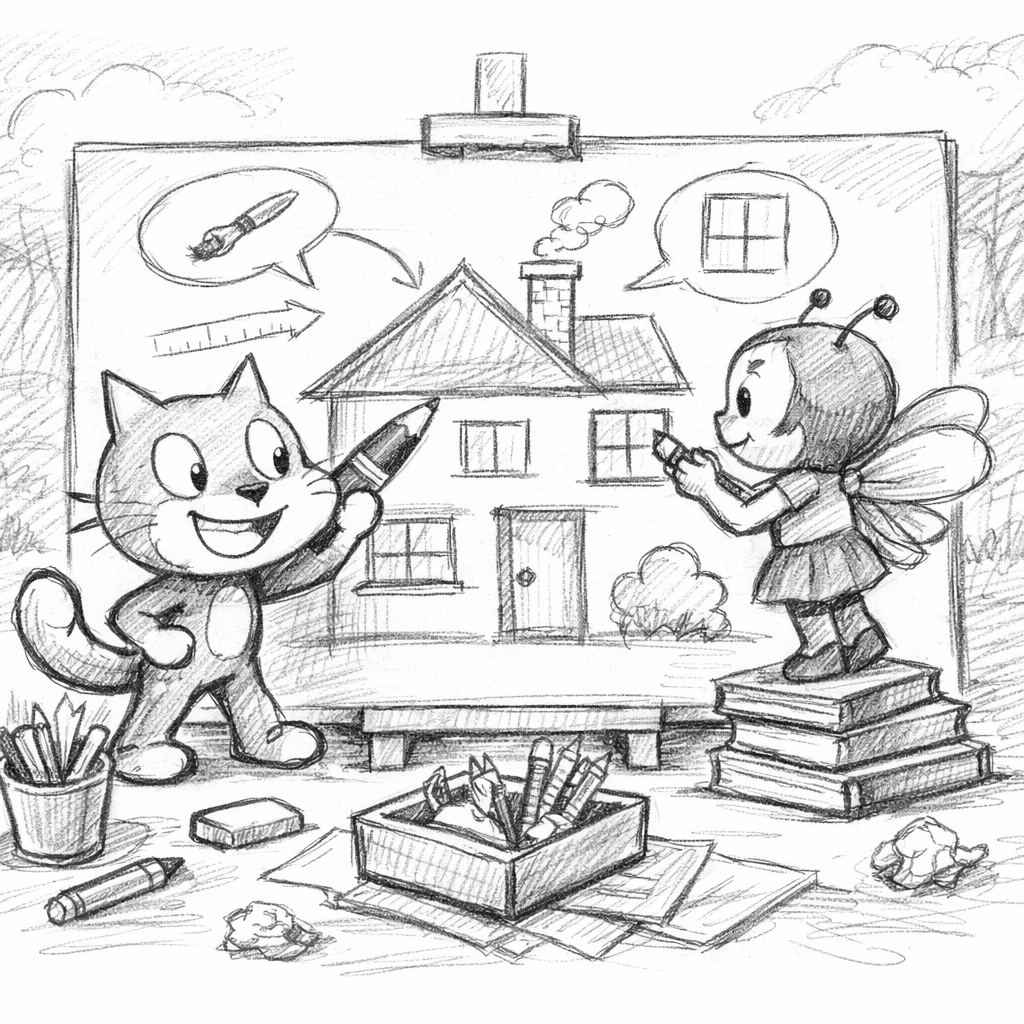
In this project we will draw a house with Scratch together, with different pens designing different elements. One pen will paint the house itself, while another pen will add the door. The stage plays a central role by setting the global variables x and y when clicking with the mouse. This information is then sent to the other sprites to work synchronized and cooperatively. Let's get creative together and create our own digital house!
Create a stage
To create the stage for our joint project and define the common interfaces, follow these steps:
- Start new project: Open Scratch and click "New Project" to create a fresh work environment.
- Delete all sprites: Click on the sprites in the list and delete them to make sure we start with an empty stage.
- Create interface variables: Create the interface variables
xandythat store the position of the mouse. These variables are crucial to setting the exact coordinates when we click with the mouse. - Create code: Select the stage and start creating the code. Here we add the logic that controls the drawing of the house.
- Send message: Add a block that sends a message to the other sprites to let them know that the position has been updated. This allows a coordinated collaboration in the drawing of the house.
With these steps you have successfully set up the stage to start the creative collaboration!

Create Sprites
To create the sprites for our joint project and to be able to work independently, follow these steps:
- Create new project: Start Scratch and click "New Project" to create a fresh work environment. This ensures that everyone can work independently.
- Delete all sprites: Delete all existing sprites to start with an empty stage.
- Add new sprite: Click the sprite icon at the bottom left to add a new sprite. Choose a pen sprite that is used for drawing.
- Customize pen sprite: You can customize the look of the pencil sprite by changing the costumes or uploading your own designs to visually differentiate the pencils.
- Create code for the sprites: Select each sprite one by one and add the corresponding code. Make sure that the variables used have the same name and that the message to be received uses the same string. So the communication between the sprites via the interfaces will work smoothly.
- Download Sprite: Open the Sprite library, look for the pen sprites or other suitable graphics you need and add them to your project.
With these steps you have successfully created and prepared the sprites to work independently on our joint project!
Merge Project
To merge the project, follow these steps:
- Create stage: Start with the already created stage that defines the common interfaces. Make sure that all the required variables and the code are present.
- Open project: Open the project where the sprites were already created. You can do this by clicking File, then clicking Open Project.
- Load Sprites: Check that all the required sprites are present in the open project. If not, download the sprites from the Sprite library by selecting and adding the graphics you want.
- Customize code: Make sure the code for the sprites matches the code of the stage. Make sure that the variables used have the same name and the messages use the same string.
- Test project: Run the project to make sure everything works smoothly and the sprites work together correctly.
With these steps you have successfully put together the project and can now work on your joint artwork!
Leave a Reply