



Welcome to TicTacToe Menace: The Learning Enemy! In this app, you play against a computer opponent based on the Menace Matchbox Calculator - an example of Reinforcement Learning.
The special feature: The learning table can be stored both locally and in a MySQL database, so that the opponent can learn from several players at the same time!
Menace principle
For a detailed explanation of the Menace principle and how it is implemented in TicTacToe Master, watch this informative YouTube video. It explains vividly how the matchbox calculator works and how it serves as a basis for learning the computer opponent.
Start the app
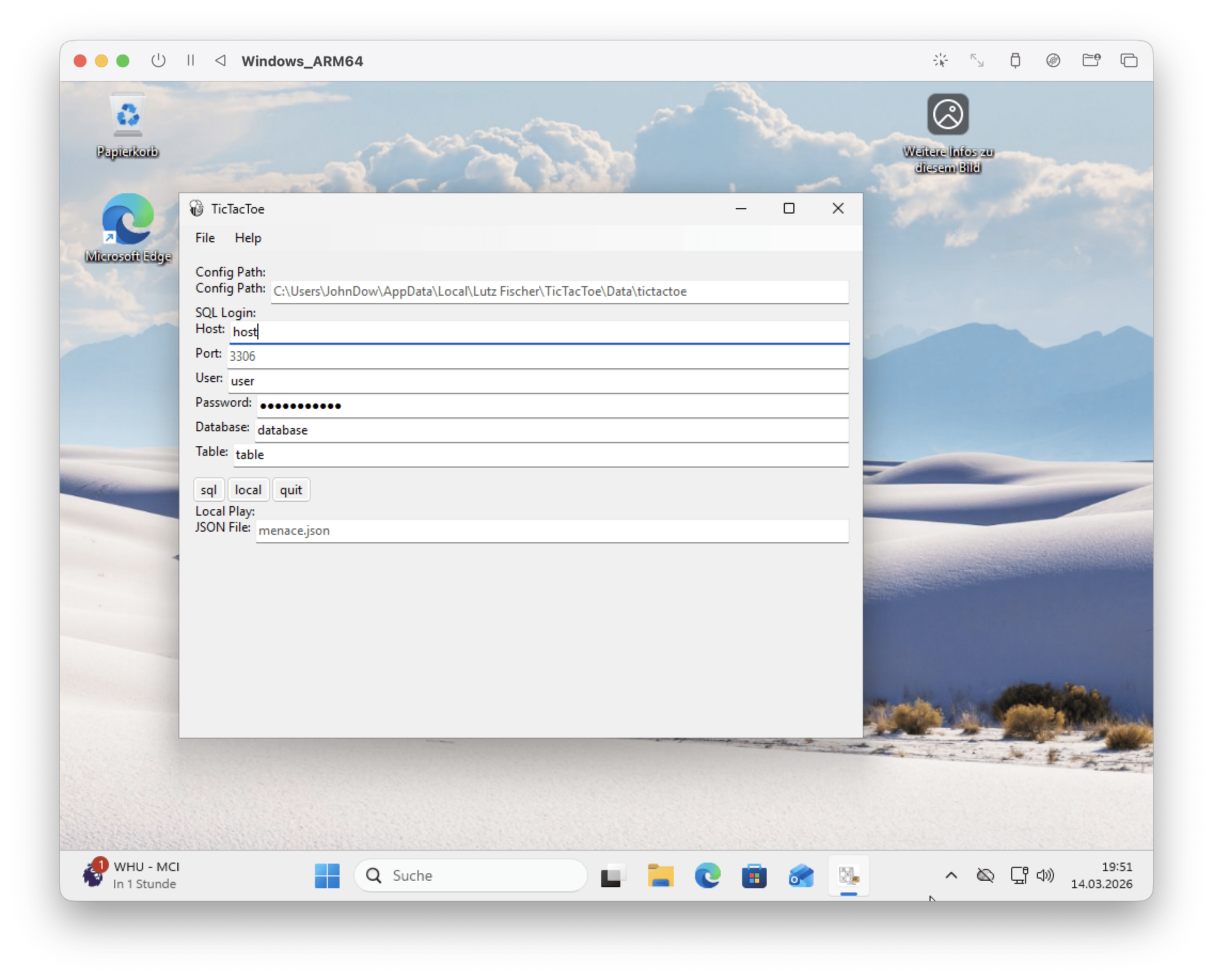
To log in to the MySQL server with the TicTacToe Menace app and configure the application, follow these steps:
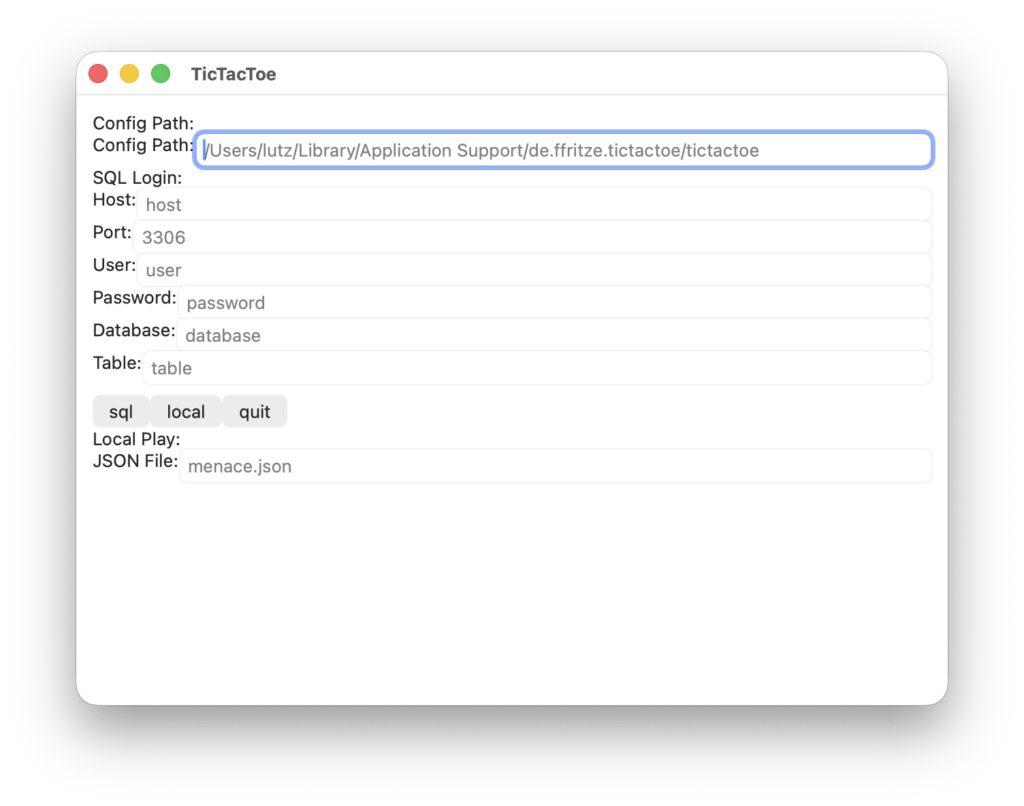
- Öffne die App: Starte die TicTacToe Master Anwendung auf deinem Gerät.
- Configure SQL access (Unless 'local' is played):
- Config Path: Check the path to the configuration file. By default, this is set to the app data directory. Make sure the path is correct.
- Host: Enter the host name. For local connections use
localhost. - Port: The default port for MySQL is
3306. Leave this value unchanged unless you have a different configuration. - User: Enter the username you created for the MySQL database.
- Password: Enter the password for the user.
- Database: Enter the name of the database you created for the application.
- Table: Enter the name of the table you want to use.
- Choose the mode:
- Click the "sql" button to use the SQL database, or "local" to use the local JSON file (
menace.json).
- Click the "sql" button to use the SQL database, or "local" to use the local JSON file (
- Confirm the entries:
- Check all entries and click "quit" to complete the registration and launch the app.
With these steps you can successfully log in and use the TicTacToe Master app to play against the learning computer opponent.
Instructions for using TicTacToe Menace
When you start the TicTacToe Menace app, you will be asked to select the starting player. Click either "X" or "O" to determine who starts the game. Note that the computer opponent always plays as "O".
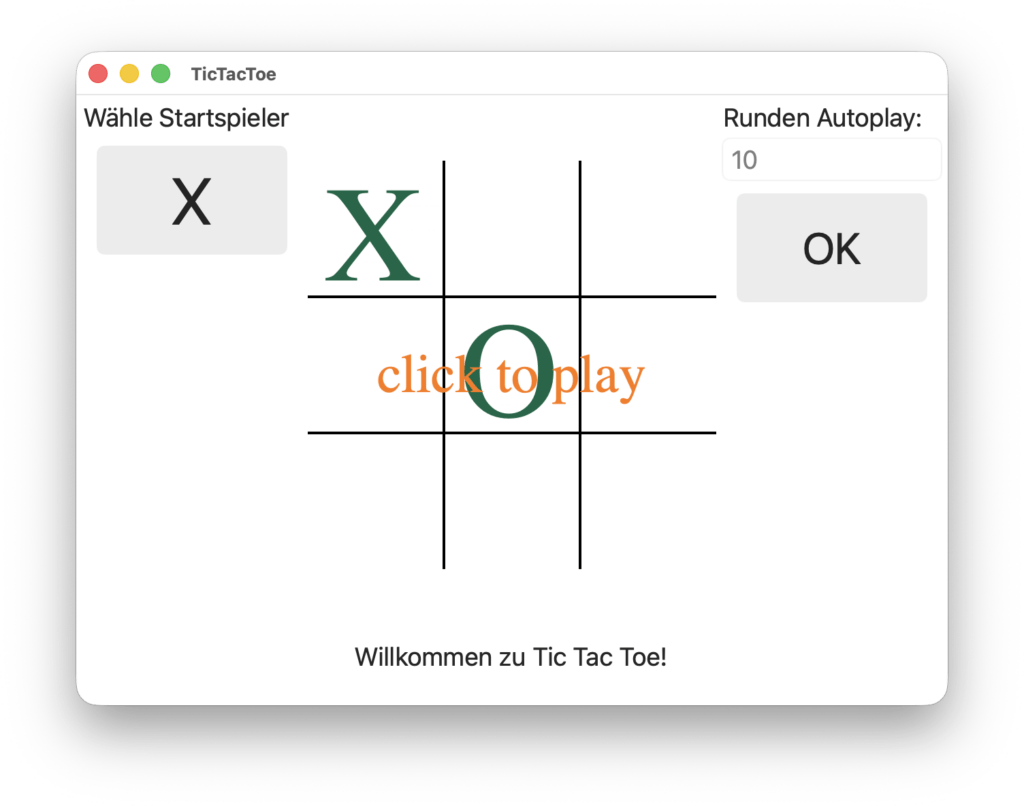
After clicking on the playing field, it will appear, and you can play with your chosen symbol (X). Just click on an empty field to make your move. The computer opponent will then execute his move as an "O". After each turn, the game checks whether there is a winner. If one of the players has three symbols in a row, the winner is displayed.
If you have autoplay mode enabled, the app automatically plays the set number of rounds. At the end, you can check the results and see how many times the computer opponent has won.
To exit the game, simply close the window of the application. Have fun playing TicTacToe Master and challenging the learning computer opponent!
Download
The TicTacToe Menace app is already running and is available for various operating systems: MacOS, Android, Linux and Windows. Please note that the app is still under development.
To download the app, simply click on the corresponding button for your operating system. Have fun playing!


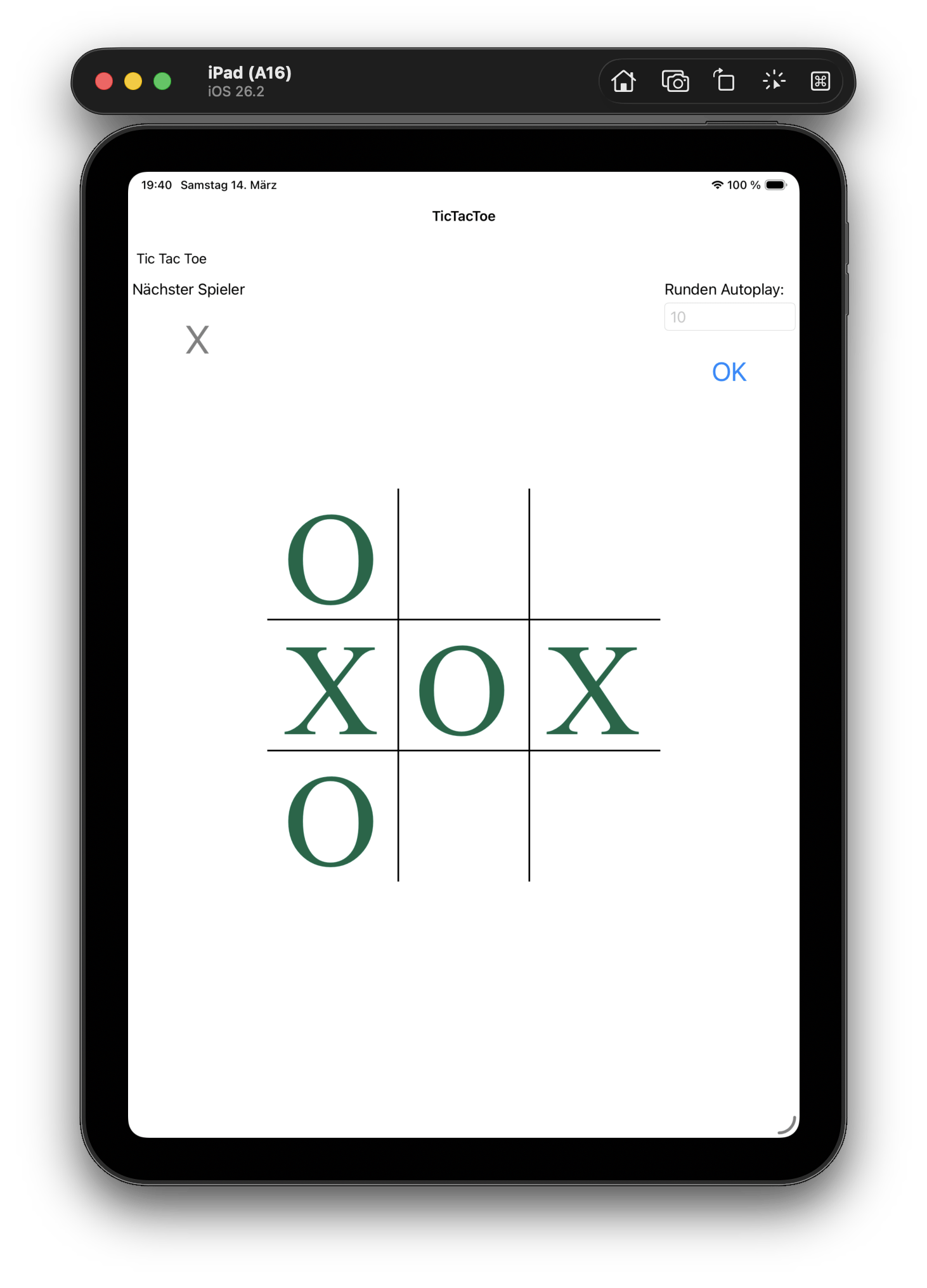
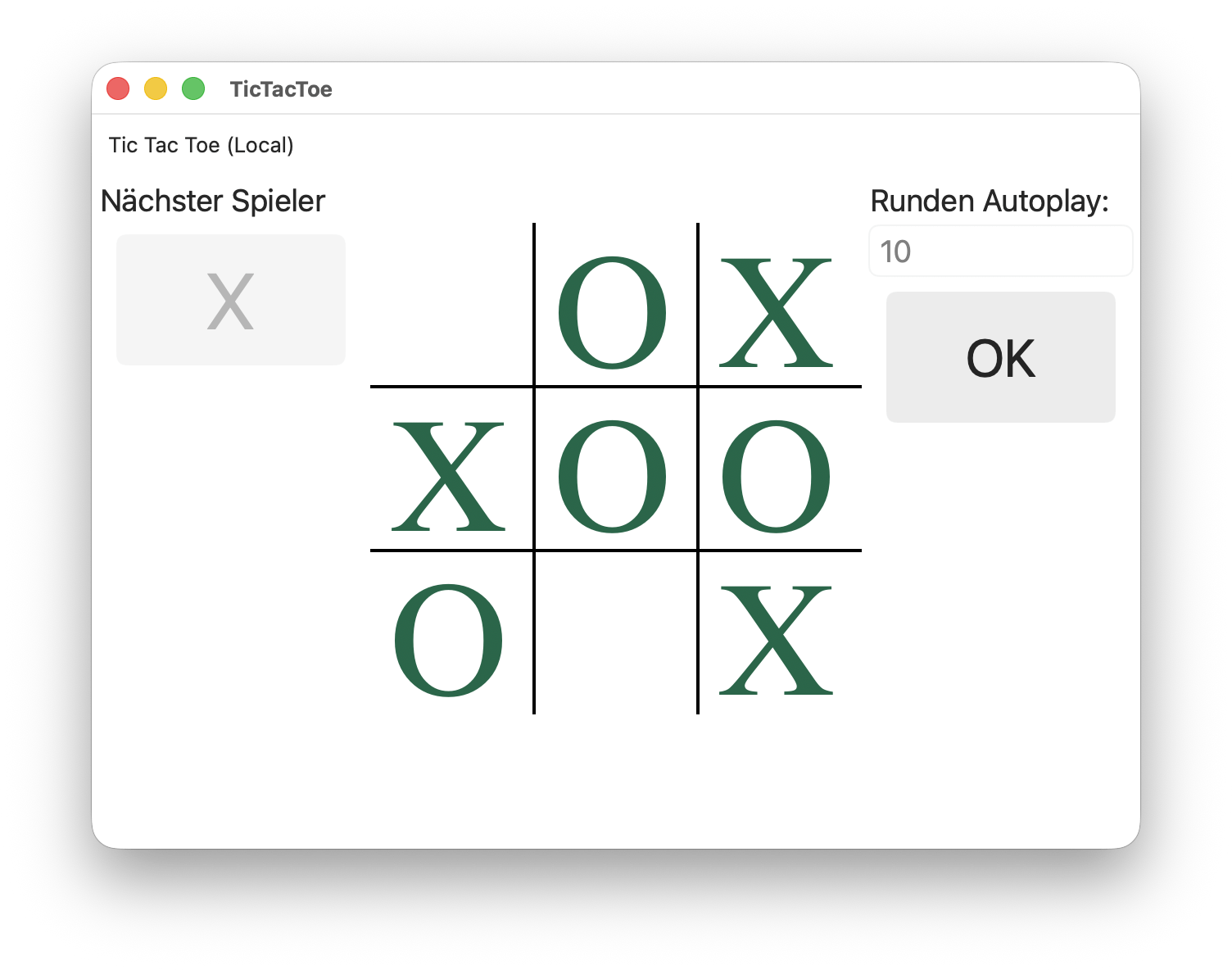
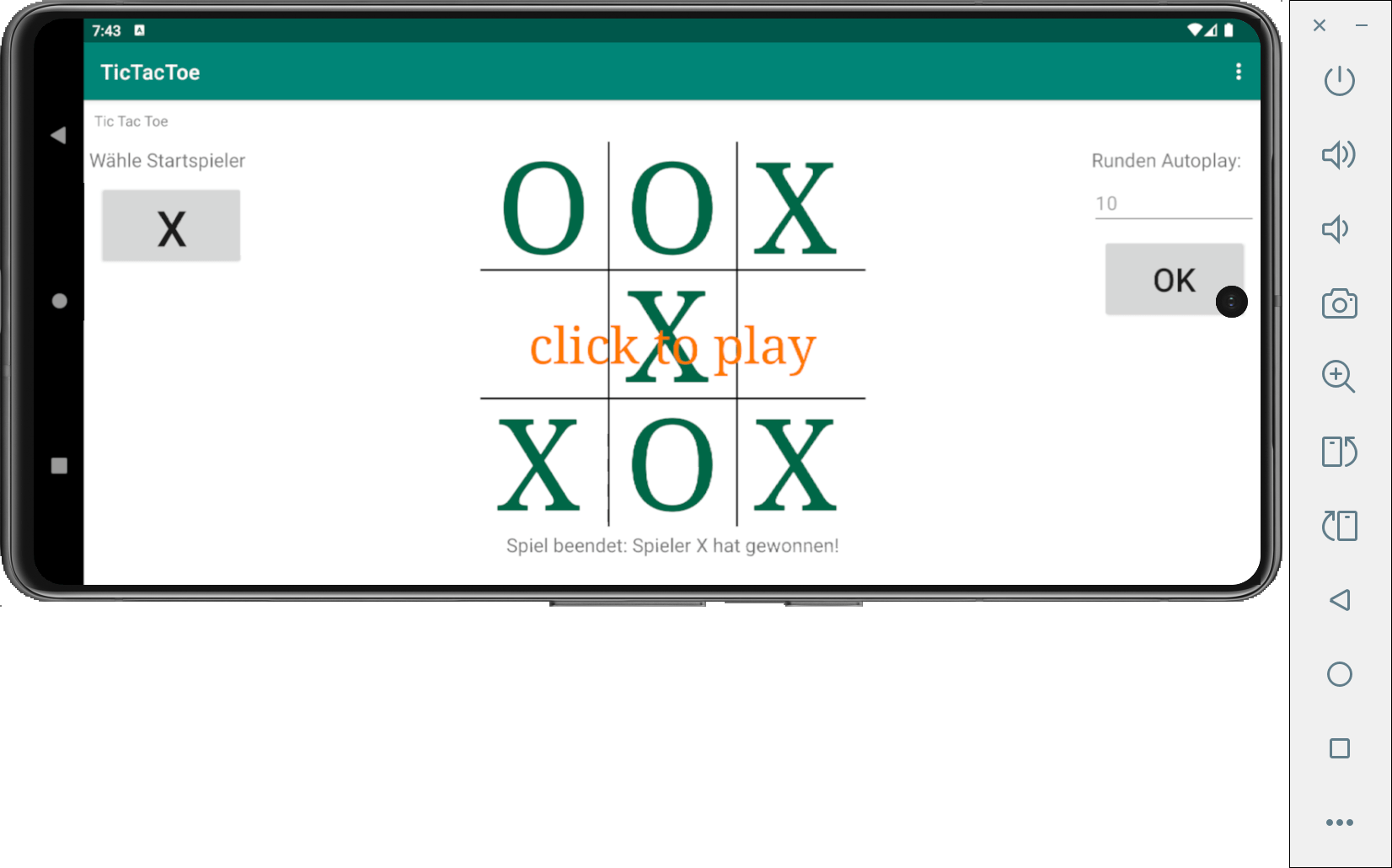
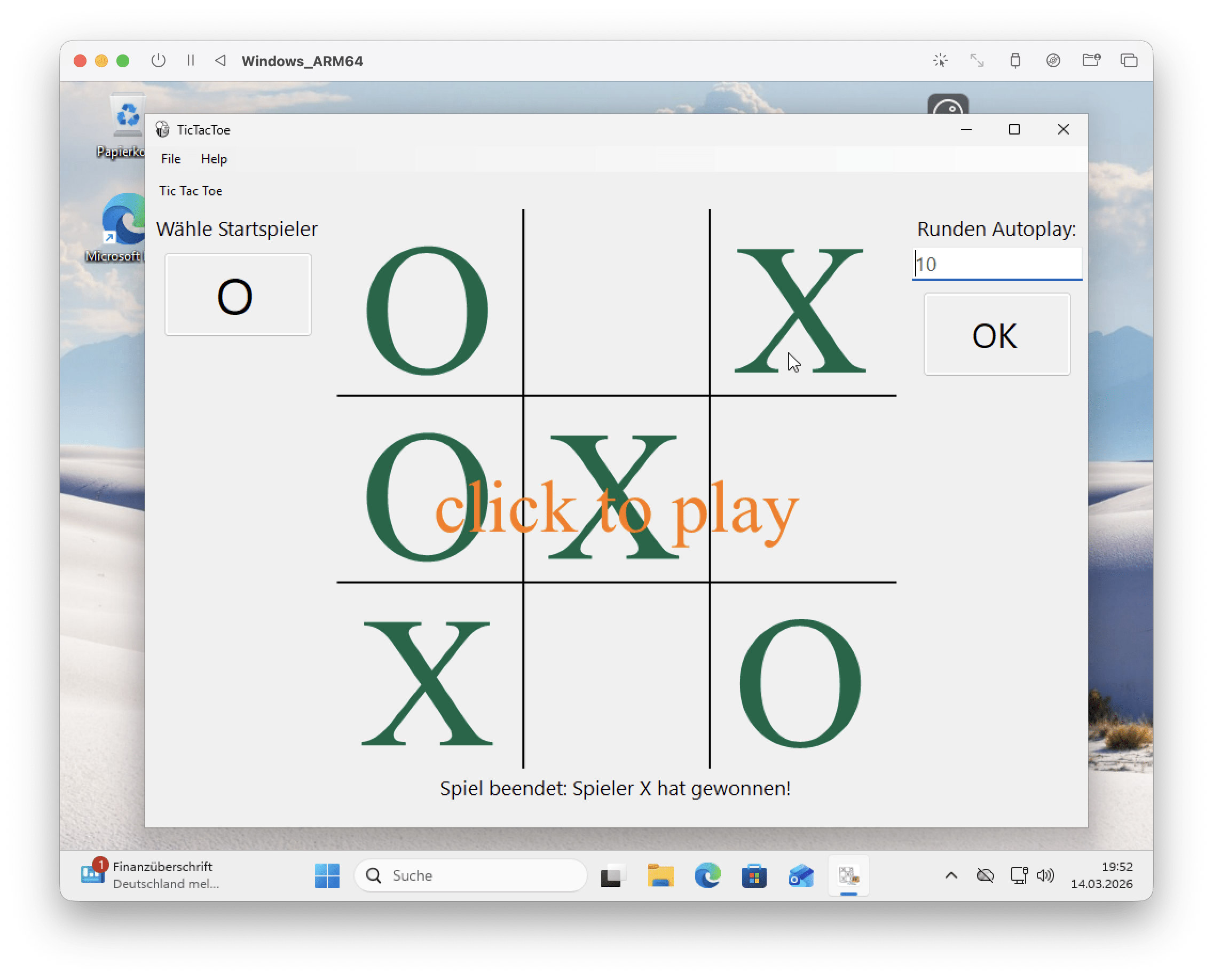
Currently, the app is only available for macOS, Android and Windows and it is re-signed. This means (for macOS) that you have to confirm several times in the settings that you want the app to be opened.
Further platforms will follow as soon as the coffee box is full enough to cover the costs incurred. Thank you for your support!
Instructions for installing a MySQL server
Step 1: Install MySQL server
- Download MySQL:
- Go to the MySQL website and download the appropriate version for your operating system.
- Start installation:
- Follow the installation instructions. Select the default options during installation, unless you have special requirements.
- Start MySQL server:
- After installation, you can start the MySQL server via the command line or the MySQL Workbench.
Step 2: Open MySQL client
- Open a terminal or the MySQL Workbench and log in with the command:
mysql -u root -p- Enter the password for the
rootuser when prompted.
Step 3: Create user and database
- Create new user:
- Run the following command to create a new user (replace
usernameandpasswordwith your desired username and password):
- Run the following command to create a new user (replace
CREATE USER 'username'@'localhost' IDENTIFIED BY 'password';- Create database:
- Create a new database with the following command (reprede
database_namewith the desired name):
- Create a new database with the following command (reprede
CREATE DATABASE database_name;- Assign permissions:
- Give the new user access to the database:
GRANT ALL PRIVILEGES ON database_name.* TO 'username'@'localhost';- Apply changes:
- Run the following command to apply the changes:
FLUSH PRIVILEGES;Security note: Keep the MySQL server only on the local network. Avoid making the server public to prevent unauthorized access. Make sure the firewall is configured to block external access.
Leave a Reply